Questionnaire-Pre-Population
InCase questionnaires allow law firms to build their own questionnaires to be completed by their clients. This document outlines the procedure and format to prepopulate questionnaires with data before they are sent to the client.
Creating Fields that can be Pre-populated
When creating form fields using the inCase form builder, you will need to make sure that the form fields created have an identifiable tag, this is so that you can identify the form field in the data that you will bundle and send.
Each form field allows multiple tags to be configured, however when referring to the form field from the data bundle only one tag will be used to relate the data to the field. Using the same tag value on multiple form fields will refer to the same source information if defined in the supplied data bundle.
Example Form
For the rest of the examples we will be referring to a fictitious form which will have the following fields:
Form Field Name | Form Field Tag | Form Field Type |
|---|---|---|
Name | client-name | name |
Address | client-address | addressuk |
Gender | client-gender | radio |
Email Based Integration
When integrating with inCase using the Email integration, you will be familiar with the command block to request a questionnaire to be completed by your clients. Within this command block there is field called questions, this is where we will define the data for prepopulating the above form.
The format of the provided data must be in the form:
or
Where the tag represents the tag that you have configured in the form builder, and the value represents the value that you would like to prepopulate the field with. The format of the value section is dependent on the field type that you have chosen, please refer to the form field type value mapping table to see how the different form fields allow different values.
Using this format we are able to create an example command block to create the questionnaire and prepopulate the fields with data:
Or if you are using the questionnaireData field, which accepts a JSON array of the question data:
REST Based Integration
When using the HTTP REST based integration, there is a property that you can use called questionnaireData which can be defined as follows:
OpenAPI Integration Documentation
Integration Documentation for the REST Integration may also be found here:
https://middleware-dev.incase-api.co.uk/swagger-ui/index.html?configUrl=/v3/api-docs/swagger-config
SOAP Based Integration
When using the SOAP based integration, you will be calling the SendQuestionnaire method, the parameters for this method accept a questionnaire_data element which comprises of an array of question_data elements. The question_data element holds the pre-population data for each question that you would like to prepopulate.
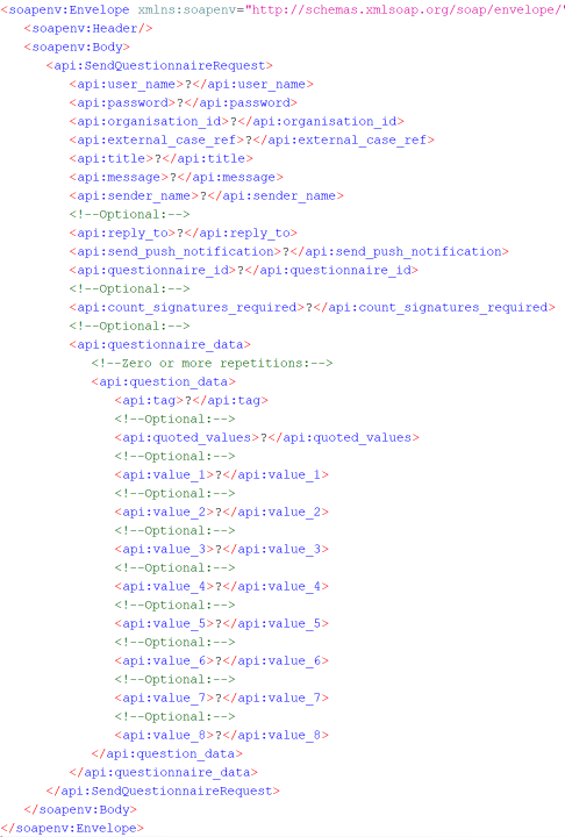
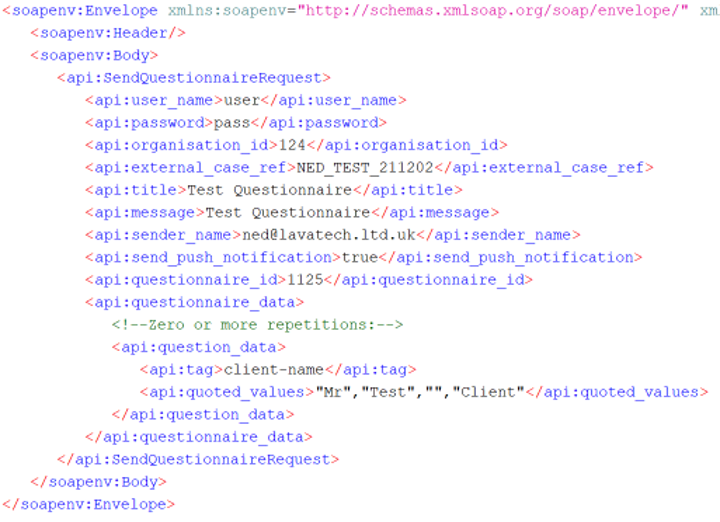
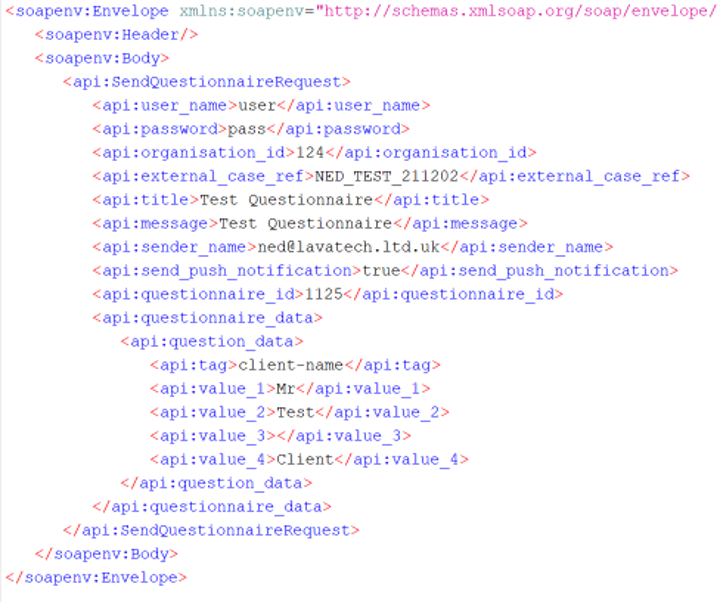
The question_date element allows two different ways of providing the data. You can either complete the value_1 to value_8 fields with the values according to the question type, or you can provide all the answers in one quoted_values element quoting each value to separate it.
Please see the examples below on how to provide the data in the format required.
Example for Using the Quoted Values Element:
Example for Using the Value Elements:
Form Field Type Value Mapping
Type | Value Mapping | Example |
|---|---|---|
freetext | "text_value" | "Example text" |
name | "title", "first_name", "middle_names", "last_name" | "Mr","Test","Bill","Client" |
addressuk | "town", "locality", "postcode", "house_number_street_name" | "London", "", "SW1A 2AA", "10 Downing Street" |
addressuk_split | "house_name_or_number", "street_name", "locality", "town", "postcode" | "10", "Downing Street", "", "London", "SW1A 2AA" |
money | "amount" | "120.00" |
date | "date" | "21/11/2021" |
boolean | "boolean_value" | "true" or "false" |
bank_details | "sort_code", "account_number" | "10-10-10", "12345678" |
radio | "selected_value" | "Yes I agree" |
multiselect | "selected_value_1, selected_value_n" | "Hall,Living Room" |
radio_freetext | "selected_value", "text_value" | "Yes I confirm", "Example text that accompanies my confirmation" |
multiselect_freetext | "selected_value_1,selected_value_n", "text_value" | "Hall,Living Room", "Example text" |
radio_money_freetext | "selected_value", "amount", "text_value" | "Yes I confirm", "120000.00", "Example text that accompanies my confirmation" |
radio_radio_money_freetext | "selected_value", "selected_value", "amount", "text_value" | "Yes I confirm", "I will be liable", "120000.00", "Example text that accompanies my confirmation" |
freetext_radio_money_freetext | "text_value", "selected_value", "amount", "text_value" | "Example Text", "Yes I confirm", "120000.00", "Example Text 2" |
freetext_radio_radio_money_freetext | "text_value", "selected_value", "selected_value_2", "amount", "text_value_2" | "Example Text", "Yes I confirm", "I will be liable", "120000.00", "Example Text 2" |
radio_attachment_radio | "selected_value", "selected_value_2" | "Porch", "Consent was refused" |
radio_freetext_attachment_checkbox | "selected_value", "text_value", "selected_value_2" | "Porch", "Example Text", "FENSA certificate attached" |
radio_attachment_checkbox | "selected_value", "selected_value_2" | "Porch", "FENSA certificate attached" |
attachment_checkbox | "selected_value" | "Building Regs Required" |